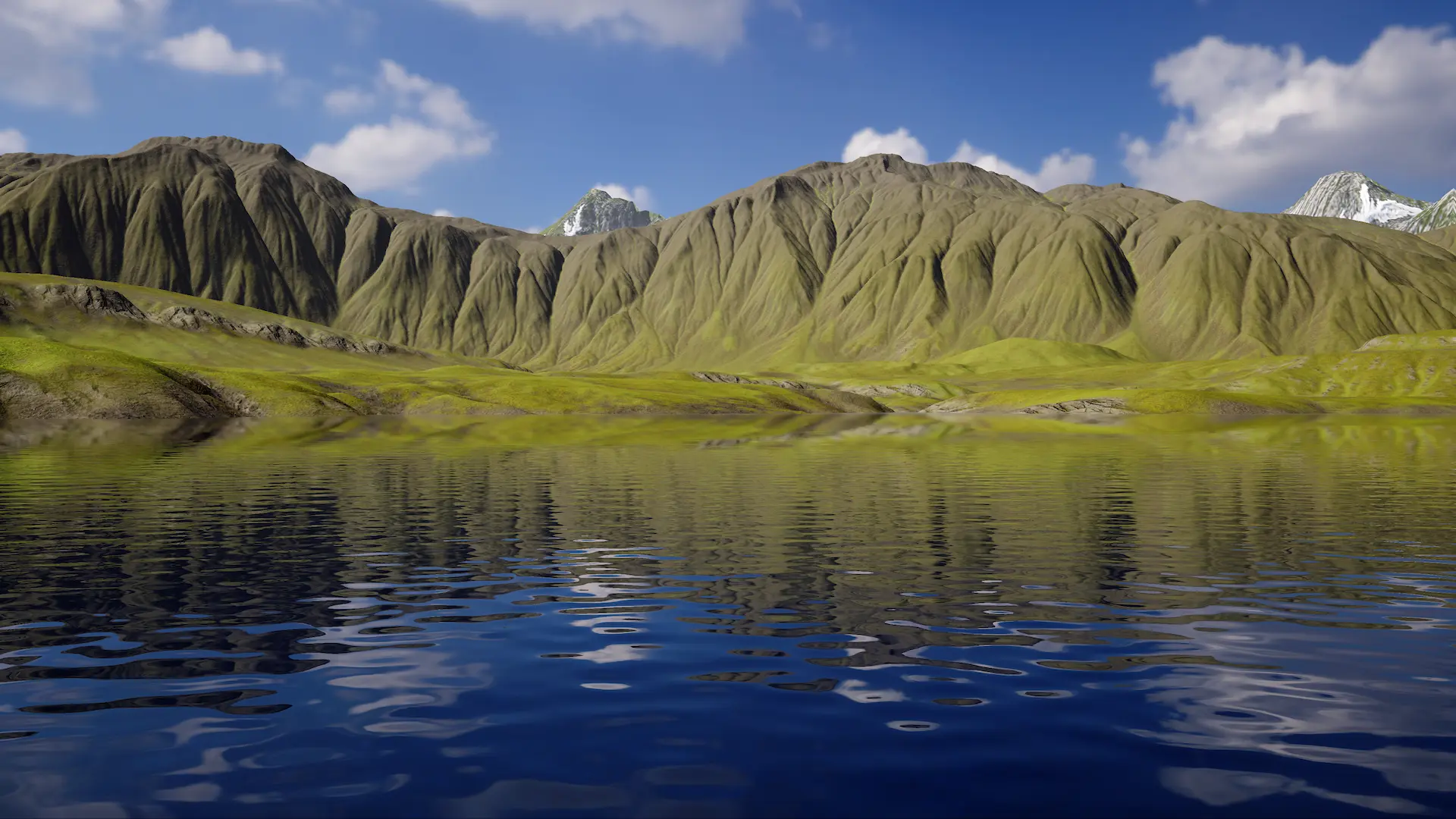
Oceans
By default Crest generates an infinite body of water at a fixed sea level, suitable for oceans and very large lakes.
Lakes
Crest can be configured to efficiently generate smaller bodies of water, using the following mechanisms.
The waves can be generated in a limited area - see the User Inputs section.
If the lake altitude differs from the global sea level, use a Water Level Input to change the height of the water to match. It is recommended to cover a larger area than the lake itself, to give a protective margin against lower mesh densities from LODs in the distance.
For advanced lake authoring, see the Local Overrides.
Streams
There are several ways to accomplish streams. The most pertinent data is flow for the current and height for the stream gradient (optional).
Flow & Height Map
A river being a large stream, often without a visible gradient, can be implemented with just a Flow Map. The water level can also be adjusted to make a stream gradient by using a height map or a mesh with the Water Level Input.
Splines
Splines are a great option for creating streams. They can direct flow and create gradients.
Please see Rivers.
Shallow Water Simulation
The Shallow Water Simulation can simulate streams and bake the final output to a texture.
Please see Stream Simulation.
Separate Water Bodies
The Water material has the Custom Mesh toggle which configures the material for usage with separate mesh renderers. This can be optimal for water bodies which are separate and may need different material properties.
There are a few considerations:
There will be no displacement from our system (ie waves etc) when using this mode, but displacement will still contribute to normals.
Currently, inputs like Sphere Water Interaction will not work with them, unless the inputs are placed at sea level, as they are unaware of these separate bodies
Troubleshooting
Ocean waves are affecting rivers and/or lakes
This is typically caused by incorrect blending, input feathering or large global waves with chop. For the latter, chop will add horizontal displacement which can cause waves to displace onto another input, circumnavigating the input’s blending.
The following are potential solutions:
If varying the water level, enable on the ShapeFFT/Gerstner used for ocean waves. This will fade global waves so there are none one meter or further away from sea level. This is enabled by default.
Make sure on the non global input is set to an option which overrides previous values. Also make sure to pay attention to , to ensure local waves execute after global ones.
will feather the edges of the input which affects blending.
Using water depth for wave attenuation can help greatly with reducing global waves affecting inland water bodies
Be sure to check , and Respect Shallow Water Attenuation on the Wave Spectrum, as it reduces the effectiveness of attenuation.
If changing wave attenuation is not desired, expanding the input to give a buffer is a good solution. For splines, override the spline radius at for the ShapeFFT/Gerstner attached to the spline.