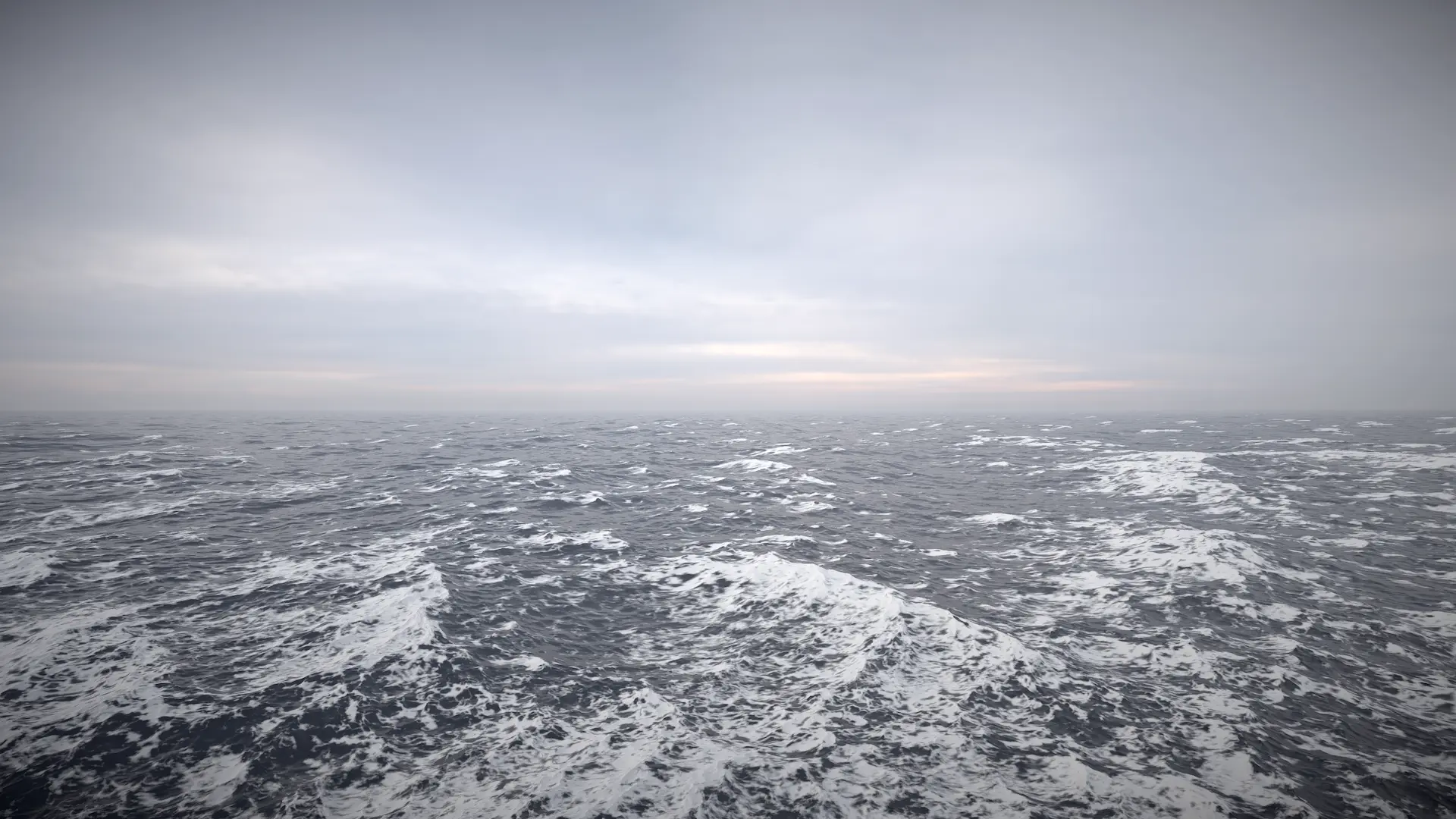
Crest simulates foam generation in choppy water (ie pinched wave crests) and in shallow water to approximate foam from splashes at the shoreline. Each update (default is 30 updates per second), the foam values are reduced to model gradual dissipation of foam over time. From there, the shader will sample the simulation to render foam from provided foam textures.
To turn on this feature, enable .
Simulation Settings
The Foam simulation properties can be found under .
To configure how foam generates, create a Foam Settings file with , and assign it to .
Tip
Clicking “New” next to will create a new one for you.
The most important setting is the Foam Fade Rate. It applies to all foam in the simulation, including shoreline foam, which means it needs to be balanced with the following settings.
Furthermore, the Maximum is also important. This setting can be the key to unlocking lasting wake foam.
Whitecaps
Crest detects where waves are ‘pinched’ and deposits foam to approximate whitecaps. Pinched waves comes from Chop in for Animated Waves and the Horizontal Displace setting for Dynamic Waves.
Shoreline Foam
If water depth is provided to the system (see Depth Simulation), the foam simulation can automatically generate foam when water is very shallow, which can approximate accumulation of foam at shorelines.
User Inputs
Crest supports inputting foam data into the system, which can be helpful for fine tuning where foam is placed.
The Foam Input component can write data to the simulation and supports the Area Mode, Texture Mode, Spline Mode, Paint Mode and Renderer Mode. The Texture Mode is the most efficient mode.
The following shaders are available under Crest/Inputs/Foam if using the Renderer Mode:
Add From Texture adds foam values read from a user provided texture. Can be useful for placing ‘blobs’ of foam as desired, or can be moved around at runtime to paint foam into the simulation. This is an alternative to the Texture Mode as it can provide more properties to adjust.
Add From Vertex Colors can be applied to geometry and uses the red channel of vertex colors to add foam to the simulation. Similar in purpose to Add From Texture, but can be authored in a modeling workflow instead of requiring a texture.
Foam Shading
Foam shading is configured on the water surface material.
There are two foam textures, one with bioluminescence, and one without. If you want sparkles in foam-based bioluminescence, then make sure you are using the packed foam texture.
For a more stylized look, try reducing the Foam Feather value, or provide a stylized foam texture.
Scale & Repetition
By default, foam is sampled using multi-scale sampling, which helps with repetition. It also supports stochastic sampling, which can be enabled in . Multi-scale foam can also be disabled here, if scaling foam provides undesirable results at a distance.
The water material also has controls for scale under the Foam heading.
Troubleshooting
How do I reduce pixelation when viewed up close?
Find the foam textures and change the compression quality. Removing compression will eliminate pixelation. Be wary that this will increase performance cost.
They can be found in: Packages/com.waveharmonic.crest/Runtime/Textures.