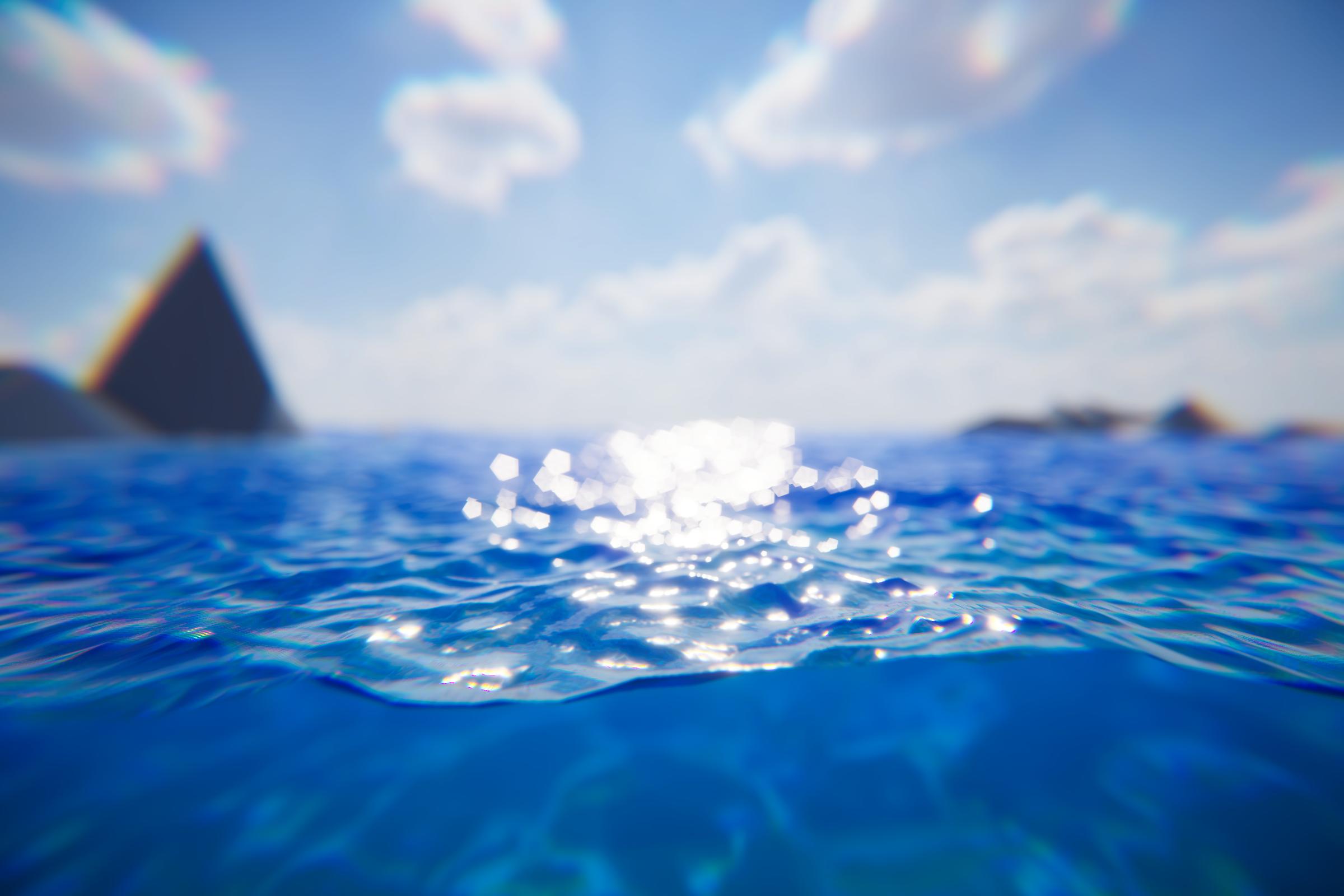
This section provides a summary of common steps for setting up water with links for further reading:
Add water: Add Crest water to your scene as described in section Adding Crest to a Scene.
Water surface appearance: The active water material is displayed below the Water Renderer component. See the Appearance section for documentation on water appearance.
Add Waves: Add Shape FFT component to a Game Object and assign a Wave Spectrum asset. Waves can be generated everywhere, or in specific areas. See section Animated Waves.
Shallow Water: Reduce waves in shallow water. See section Shorelines & Shallows.
Oceans, Rivers and Lakes: Crest supports setting up networks of connected water bodies. See section Water Bodies.
Underwater: If the camera needs to go underwater, the underwater effect must be enabled. See section Underwater.
Dynamic wave simulation: Simulates dynamic effects like object-water interaction. See section Dynamic Waves.
Watercraft: Several components combined can create a convincing watercraft. See page Floating Objects.
Networking: Crest is built with networking in mind and can synchronize waves across the network. It also has limited support for headless servers. See section Network Synchronization.
Open Worlds: Crest comes with “shifting origin” support to enable large open worlds. See section Shifting Origin.
Adding Crest to a Scene
The default use case for Crest is an infinite ocean. The steps to adding an ocean to a scene are as follows:
Create a new Game Object for the ocean.
Assign the Water Renderer component to it. This component will generate the water geometry and do all required initialization.
Set the Y coordinate of the position to the desired sea level.
Tag a primary camera as MainCamera if one is not tagged already, or provide the Camera to the View Camera property on the WaterRenderer script. If you need to switch between multiple cameras, update the ViewCamera field to ensure the water follows the correct view.
Be sure to generate lighting if necessary. The water lighting takes the ambient intensity from the generated spherical harmonics regardless of whether you use baked or realtime lighting. It can be found at the following:
Tip
You can check Auto Generate to ensure lighting is always generated.
To add waves, create a new GameObject and add the Shape FFT component. See Animated Waves section for customization.