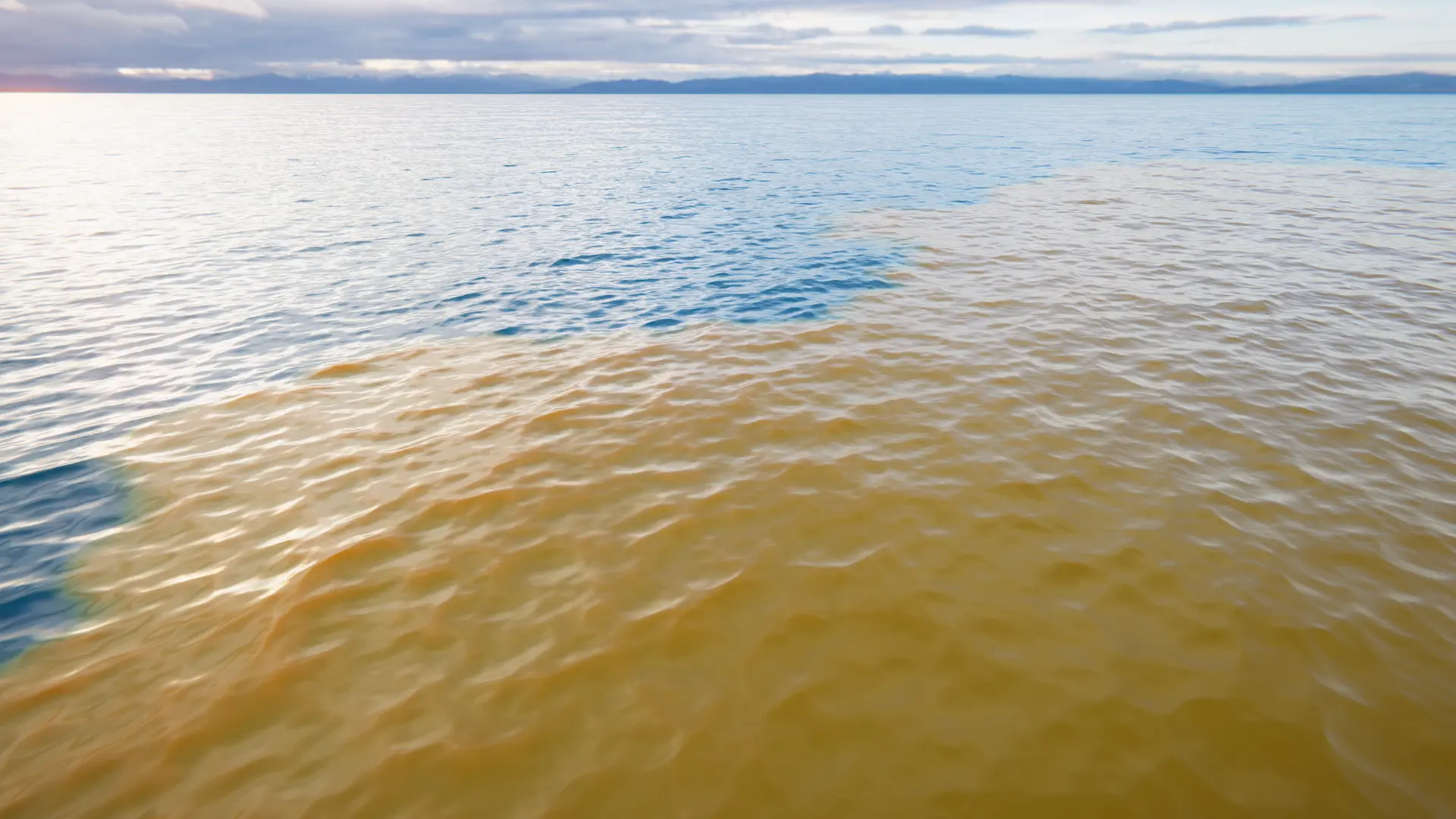
Registers a custom input to the ScatteringLod.
Attach this to objects that you want to influence the scattering color.
Related: Color, Water Inputs
Properties
Mode |
The mode for this input. See the manual for more details about input modes. Use AddComponent(LodInputMode) to set the mode via scripting. The mode cannot be changed after creation. |
Paint |
Hand-painted data by the user. |
Spline |
Driven by a user created spline. |
Renderer |
Attached ‘Renderer’ (mesh, particle or other) used to drive data. |
Texture |
Data driven by a user provided texture. |
Area |
Covers a local area. |
Weight |
Scales the input. |
Queue |
The order this input will render. Order is Queue plus SiblingIndex |
Feather |
The width of the feathering to soften the edges to blend inputs. Inputs that do not support feathering will have this field disabled or hidden in UI. |
Follow Horizontal Wave Motion |
How this input responds to horizontal displacement. If false, data will not move horizontally with the waves. Has a small performance overhead when disabled. Only suitable for inputs of small size. |
Mode
Spline
Driven by a user created spline.
Related: Spline Mode
Spline |
The Crest Spline to use with this input. |
Override Radius |
Whether to override the spline’s radius. |
Radius |
The radius of the spline. |
Override Subdivisions |
Whether to override the spline’s subdivisions. |
Subdivisions |
Increasing subdivision increases the geometry density. Mostly useful for water level changes. High values can reduce staircasing effect. |
Scattering Color |
The color of the scattering. |
Paint
Hand-painted data by the user.
LeftClick, hold and drag to add scattering color. Hold Shift-LeftClick to remove.
Related: Paint Mode
Data |
Stores the editor paint data. |
Baked Texture |
Stores the standalone paint data. |
Bake On Save |
Automatically re-bakes the texture on save. This will only work after the first bake. |
Show Baked Texture |
Force the input to use the baked paint data for standalone. |
World Size |
Change the world size of the painted area. Will not delete data when shrinking. |
Requested Texel Density |
The resolution of the output. Output texture resolution will scale to the world size based on this value - basically how many texels per unit (meters). |
Maximum Resolution |
The maximum resolution of the output. If one dimension exceeds this value, it will be clamped, and the smaller dimension will be scaled down proportionally. |
Brush Size |
Size of the brush. |
Brush Strength |
Strength of the brush. |
Color |
The color to use when painting. |
Override Color |
Whether to override all stroke colors. Instead of using the color that was painted, all strokes will use the current color. |
Renderer
Attached ‘Renderer’ (mesh, particle or other) used to drive data.
Related: Renderer Mode
Renderer |
The renderer to use for this input. Can be anything that inherits from Renderer like MeshRenderer, TrailRenderer etc. |
Disable Renderer |
Forces the renderer to only render into the LOD data, and not to render in the scene as it normally would. |
Override Shader Pass |
Whether to set the shader pass manually. |
Shader Pass Index |
The shader pass to execute. Set to -1 to execute all passes. |
Check Shader Name |
Check that the shader applied to this object matches the input type. For example, an Animated Waves input object has an Animated Waves input shader. |
Check Shader Passes |
Check that the shader applied to this object has only a single pass, as only the first pass is executed for most inputs. |
Texture
Data driven by a user provided texture.
Related: Texture Mode
Texture |
Texture to render into the simulation. |
Multiplier |
Multiplies the texture sample. This is useful for normalized textures. The four components map to the four color/alpha components of the texture (if they exist). If you just want to fade out the input, consider using weight instead. |
Area
Covers a local area.
Related: Area Mode
Area |
The Crest Area to use with this input. |
Color |
The water color. |